

### Blog Post:
Monitor Light Bar solutions are quickly becoming the go-to upgrade for remote workers and streamers who want real, data-backed eye comfort—and want to avoid yet another desktop gimmick.
Key Takeaways
- Not every monitor light bar actually reduces glare or suits future curved or dual setups—careful buying is essential.
- Features and certifications like asymmetric optics, low blue light, and flicker-free operation matter more than smart gimmicks or app controls.
- Real-world comfort depends on proper setup, mounting, and room coordination—most “eye strain” claims remain only partially proven.
- Market Snapshot — Why Monitor Light Bars Matter in 2024
- Setup & Tuning Checklist — Get the Best Real-World Results
- Advanced Analysis & Common Pitfalls
- Conclusion
- FAQ
Market Snapshot — Why Monitor Light Bars Matter in 2024
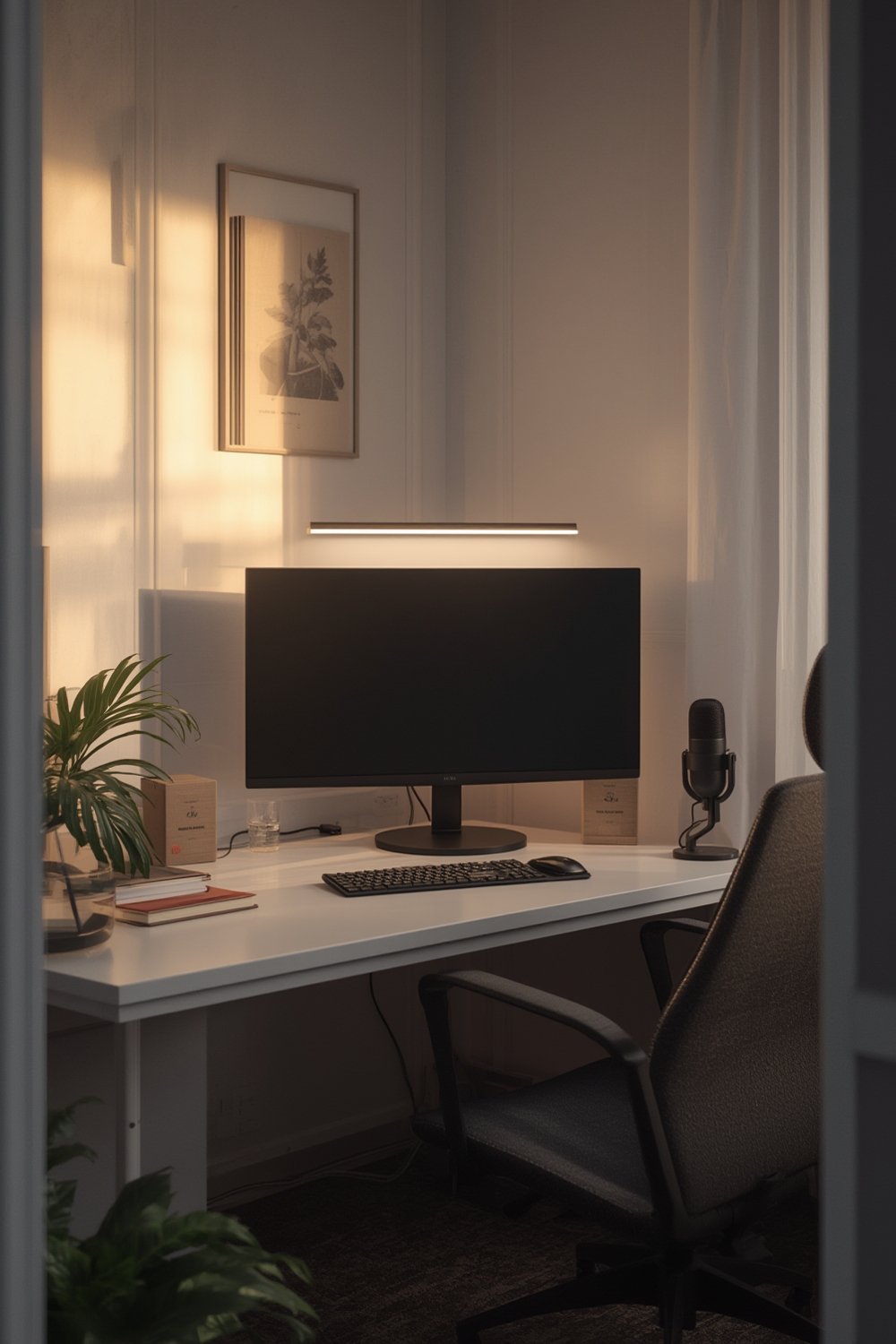
The monitor light bar segment is booming: valued at USD 1.2 billion in 2024 and projected to almost double to USD 2.5 billion by 2033 (CAGR 9.1%). This growth is driven by the explosion of remote and hybrid work, digital eye comfort awareness, and the push for compact, glare-free lighting for increasingly crowded desks. Unlike old-school desk lamps, monitor light bars use asymmetric optics to light your workspace without bouncing glare back into your eyes. As individual consumers, we make up 58.3% of this market—and real-world performance, not flashy features, is what matters for most buyers.
Setup & Tuning Checklist — Get the Best Real-World Results
To get the most out of your monitor light bar, a correct setup is non-negotiable. Follow these steps for reliable, comfortable lighting that actually reduces eye fatigue:
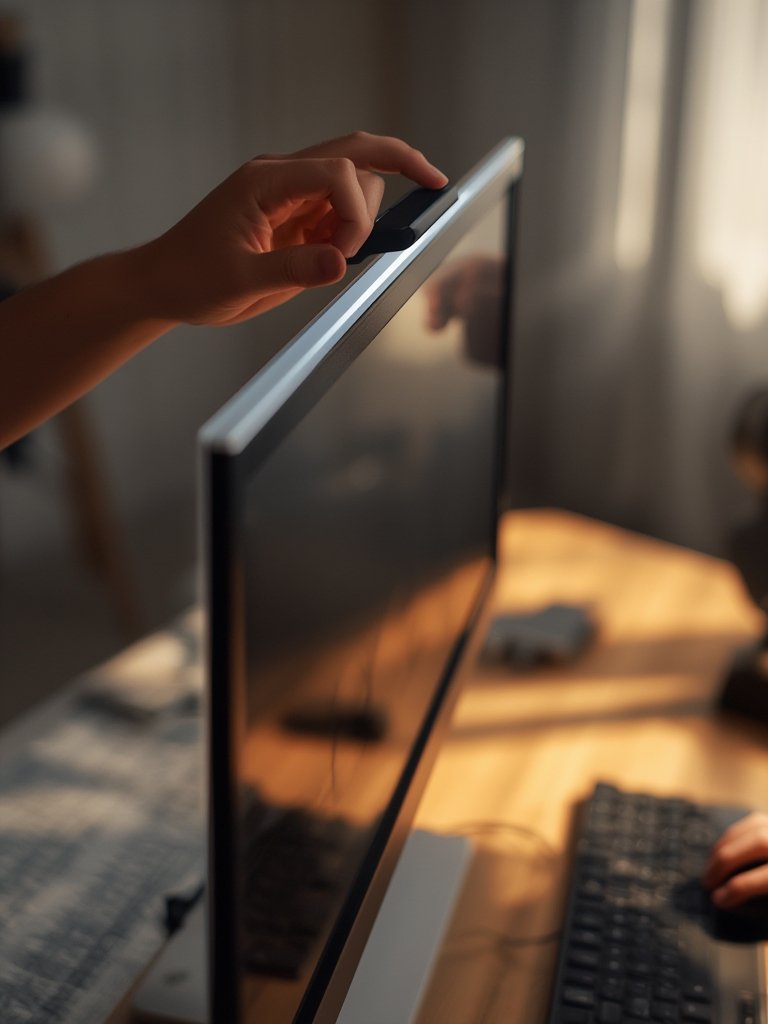
- Pick the right spot: Clip the bar firmly to the center of your monitor’s top bezel. Double-check fit for curved monitors or ultra-wide screens; if it slides or rocks, your light bar isn’t compatible.
- Set the beam angle: Adjust so the most intense light hits 20-30cm in front of your keyboard—not on your screen. Avoid any direct light hitting glossy monitor surfaces.
- Tune brightness and color: For most offices, start with a medium brightness and neutral color (4000-5000K). Dim lights for night, warm it up. If your bar is flicker-free, dim comfortably; if you see flicker or get headaches/dry eyes, consider a return.
- Test for reflections: Power on your monitor, set a solid dark background, and check for any light bar reflections from your main seating position. Adjust the angle or add a small diffuser strip if needed.
- Balance room lighting: Don’t work in total darkness with just the bar on. Keep some gentle room light to reduce screen/desk contrast, which is a top trigger for visual fatigue according to research.
- Try memory or app features: Set and save your favorite brightness, then double-check that it ‘remembers’ this on future use—major time saver.
For multi-monitor setups, position the bar above the primary screen or consider adding a second bar for balanced workspace lighting. Users of curved monitors often need a bar specifically designed for curves, or they will see light-spill at the edges.
Advanced Analysis & Common Pitfalls
You’re not alone—hundreds of buyers run into the same issues with monitor light bar setups. Here’s what the data actually shows—and how to avoid wasting time or money:
- Screen glare on glossy/curved monitors: “Anti-glare” claims often work on matte displays, but many users report halos or ghosting on glossy or curved screens, especially if the bar’s beam is poorly aimed (market-cited compatibility remains inconsistent).
- Uneven desk illumination: Many mid-tier bars light only a narrow area, leaving paperwork or left/right desk space dim. For dual monitor setups or ultra-wide setups, one bar may not be enough. Curved monitors often need wider, physically bendable bars for full coverage.
- Mounting woes: Cheap bars with weak clips or heavy bars on thin bezels wobble, slip, or even block your webcam. Always check actual mount size and weight before buying. This is especially important for future-proofing upgrades (dual/curved monitors).
- Eye-strain claims are not always proven: While “independent studies” cite 24-31% improvements in eye strain indicators versus ambient lighting, these are not linked to specific products or peer-reviewed journals. Realistic results depend on overall desk ergonomics, not the bar alone.
- Unreliable controls and construction: Low-cost models are often plagued by inconsistent touch controls, short-lived LEDs, or USB port failures. If a product lacks any warranty or clear certification, think twice.
- Fake or missing certifications: Many listings tout “flicker-free” or “low blue light” with no TÜV, CE, or FCC certificate visible. Eye safety depends on verified credentials—ask for proof or check the product gallery before purchase. For more on how quality standards connect to actual comfort, see the Asia market report.
| Feature/Problem | Entry/Budget Bars (USD 30–40) | Mid-Range (USD 40–60) | Premium (USD 60–80+) |
|---|---|---|---|
| Brightness & Coverage | Basic; can be dim or patchy | Good desk coverage, decent output | Uniform, high brightness, multi-zone |
| Eye-Comfort Features | Basic, claims only | Flicker-free/low blue light if certified | Certified flicker/blue light, ergonomic tuning |
| Mount Compatibility | Fits only standard flat monitors | Some support for thin bezels/curved | Curved, ultra-wide, optional extensions |
| Smart Control | Manual only | Remote or limited app options | Alexa/Google/Wi-Fi/app control |
| Warranty | 6–12 months if any | 1 year | Up to 3 years (rare) |
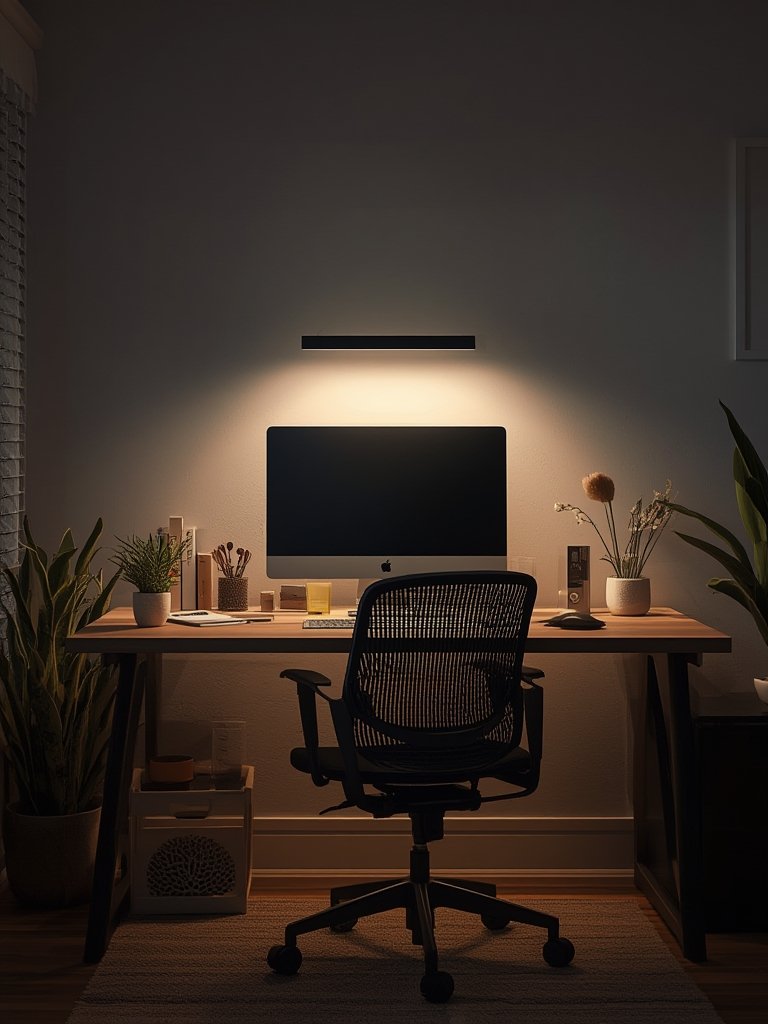
To fully optimize your ergonomic setup, consider pairing your monitor light bar with the tips from this desk ergonomics guide and track your eye and posture comfort over a few weeks.
For further reading on posture, you might find: Smart Standing Desk: 7 Best Ways to Boost Productivity (Proven Guide) and Posture Tracking Wearable: 7 Amazing Ways to Improve Posture especially helpful for remote workstations.
Conclusion
Buying a monitor light bar can make a genuine difference in desk comfort, but only if you verify asymmetric optics, mounting stability, and evidence-backed eye-care features. Always look for TÜV, CE, or FCC certifications—not just “flicker-free” slogans. Remember: most “eye strain reduction” claims require the right balance of desk, screen, and ambient lighting.
Ready to choose? Monitor Light Bar solutions—done right—offer precise, glare-free lighting. Always check compatibility and certifications before checkout for true peace of mind. For more ergonomic and tech upgrade tips, scan the rest of our deep-dive guides and optimize every aspect of your workspace today!
FAQ
Does a monitor light bar reduce eye strain better than a desk lamp?
A monitor light bar with verified asymmetric optics and flicker-free certification can reduce reflections and balance desk/screen lighting, which supports eye comfort more effectively than a standard desk lamp—if setup is correct.
Are monitor light bars compatible with curved monitors?
Compatibility is mixed. Only some bars fit securely and cover curved displays without excess light-spill or reflections. Always check manufacturer specs; for wide screens, wider or specialized curved bars work better.
What certifications should I look for?
Prioritize TÜV Rheinland, CE, or FCC certifications for safety and verified low blue light/flicker-free performance. Do not trust only in-product marketing—request certificates before buying.
Can I use a monitor light bar for dual monitor setups?
One standard bar rarely provides uniform lighting for two screens. Consider using two bars or additional bias lighting for best results with dual or ultra-wide setups.
Will a monitor light bar interfere with my webcam or screen sensor?
Some bars may cover top-mounted cameras or sensors, especially on thin-bezel monitors. Measure carefully and review images/specs before buying, or choose a smaller bar if space is limited.
—