

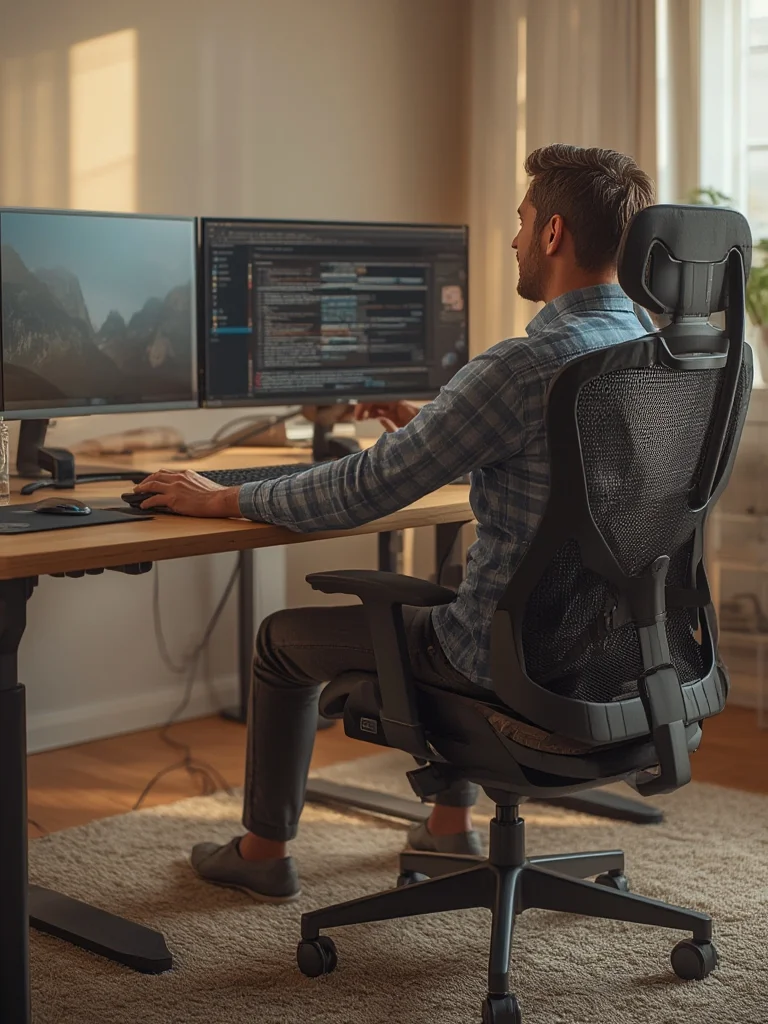
Multi-Monitor Ergonomic Setup is the reality for anyone who needs maximum productivity these days, but without the right ergonomics, dual screens can do more harm than good.
Key Takeaways
- Proper ergonomic placement of multiple monitors is essential for preventing neck strain and eye fatigue — always use the latest standards for alignment and angle limits.
- Monitor arms and desk depth both play major roles: arms offer adjustment flexibility while deep desks allow correct viewing distance for your multi-monitor ergonomic setup.
- Even the best multi-monitor ergonomic setup can become uncomfortable if you overlook common pitfalls like mismatched heights or excessive side angles.
- 1. The Core Concept: Why Ergonomics Matter in Multi-Monitor Setups
- 2. Step-by-Step Guide: Building a Neck-Friendly Dual-Monitor Workstation
- 3. Advanced Analysis & Common Pitfalls
- 4. Conclusion
- 5. FAQ
The Core Concept: Why a Multi-Monitor Ergonomic Setup Matters
As remote work and digital collaboration explode, more people are working on two or more screens for hours every day. But research from OSHA and the University of Arkansas makes it clear: bad dual-screen ergonomics can quickly trigger neck pain, muscle tension, and even chronic musculoskeletal disorders. The recent ISO 9241-5:2024 standard and ANSI/HFES 100-2007 guidelines have raised the bar for what a safe multi-monitor ergonomic setup should be.
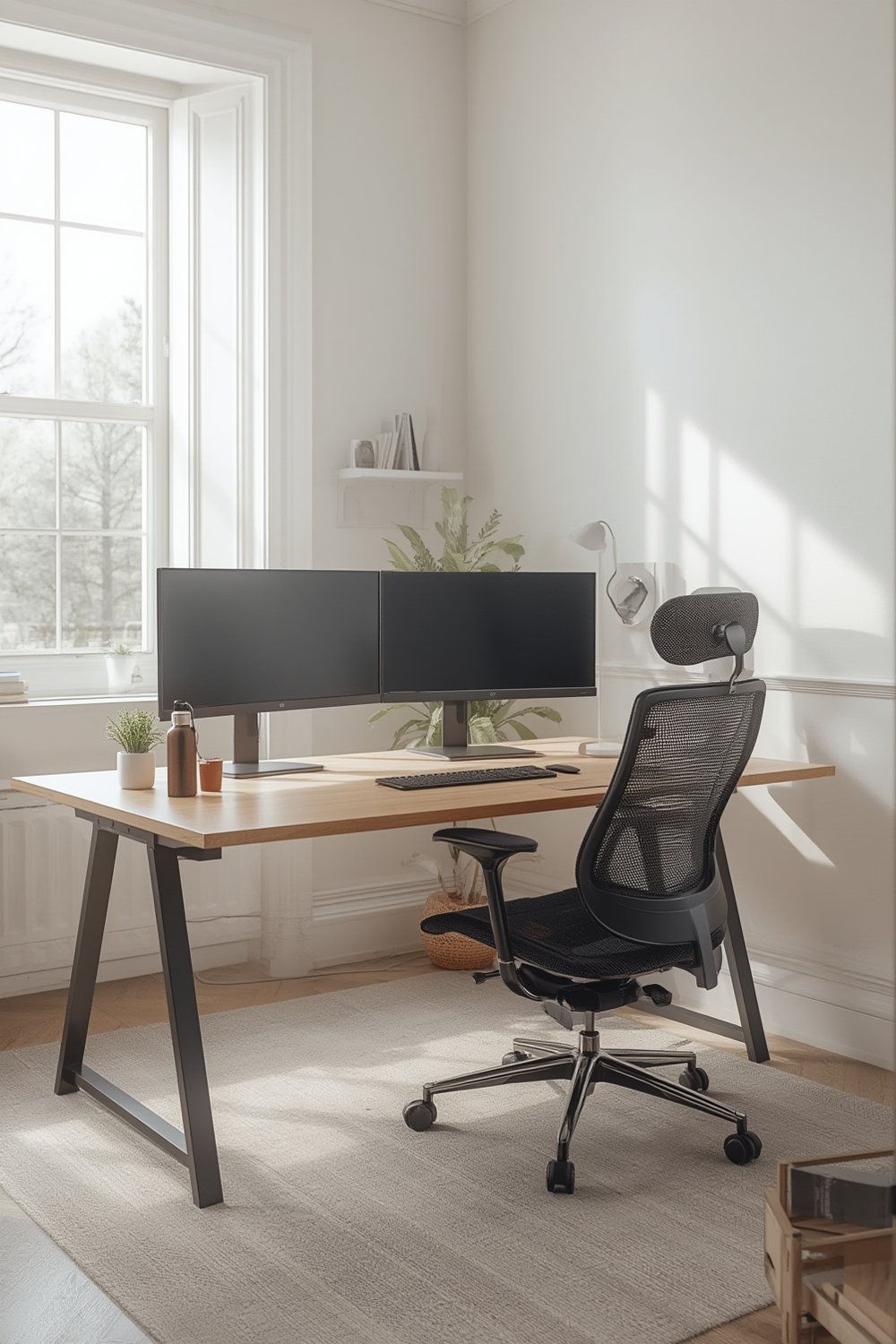
The crux? The top of your main monitor should be at or slightly below eye level, placed directly in front of you, and at arm’s length.
For two screens, keep their edges nearly touching — angled just enough (10 to 20 degrees per side if both are used equally, or keep your main monitor directly ahead and secondary at ≤30 degrees). Anything more forces your neck and spine out of alignment, leading to avoidable pain and increased risk of injury, according to the latest university research.
Monitors that are too high or low, or positioned too far left or right, result in extra twisting and awkward postures. The solution for an effective multi-monitor ergonomic setup is precise adjustment using monitor arms or stands that fit both your screens
ideally with VESA compatibility and enough extension to let you sit back and keep those screens side by side without overreach.
Desk depth is just as important, since shallow desks crowd the monitors too close, straining eyes and reducing your workspace for keyboard and mouse movement. OSHA, ISO, and ANSI all recommend minimum 30-inch (76 cm) depth for comfortable viewing distance.
Ergonomics in a multi-display environment isn’t about high-tech gadgets; it’s about sticking to these placement fundamentals. If you want to go even deeper into general workstation positioning, check out our Ultimate Ergonomic Desk Setup Guide — it’s packed with actionable steps for any office layout.
Step-by-Step Guide: Building a Neck-Friendly Multi-Monitor Ergonomic Setup
Setting up a multi-monitor ergonomic workstation requires more than just lining up your screens. Here’s a practical, research-backed process to eliminate guesswork and keep your neck and shoulders happy all day.
- Assess monitor size, weight, and adjustability for your multi-monitor ergonomic setup.Choose screens 19 inches or larger, of the same size and height if possible. Before mounting, check VESA compatibility and weight of each monitor. Most modern ergonomic arms or heavy-duty desk mounts support up to 15–30 lbs per screen, but always confirm with the manufacturer.
- Desk depth and workspace planning.Use a desk at least 76 cm (30 inches) deep for proper viewing distance (about 60–70 cm, or at arm’s length). This is crucial for maintaining a healthy multi-monitor ergonomic setup. If your desk is less deep, opt for adjustable arms allowing more range of forward/backward movement.
- Install ergonomic monitor arms (or a sturdy double stand).Monitor arms provide independent tilt, height, swivel, and side-angle control, letting you align the top edge of both screens at or just below eye level, with minimal neck flexion. If using both monitors equally, create a shallow V-shape (10–20 degree angle per monitor). For single primary use, center your main screen and angle your secondary monitor no more than 30–35 degrees off-center.
- Cable management and airflow.Choose arms with built-in cable channels to prevent clutter and allow good airflow behind both screens—this helps hardware longevity and makes cleaning easier.
- Fine-tune for brightness, contrast, and posture.Match monitor brightness and contrast, and set both at comfortable viewing heights for your seated or standing position. Test switching between sitting and standing if you’re using an adjustable desk. For specific advice on sit-stand productivity, our Smart Standing Desk guide offers science-backed tips.
- Hardware & system polish (often overlooked).GPU performance matters with more than one display. Underpowered or outdated hardware (RAM, graphics card, SSD speed) can cause lag and screen redraw delays, adding to your cognitive load and visual strain.
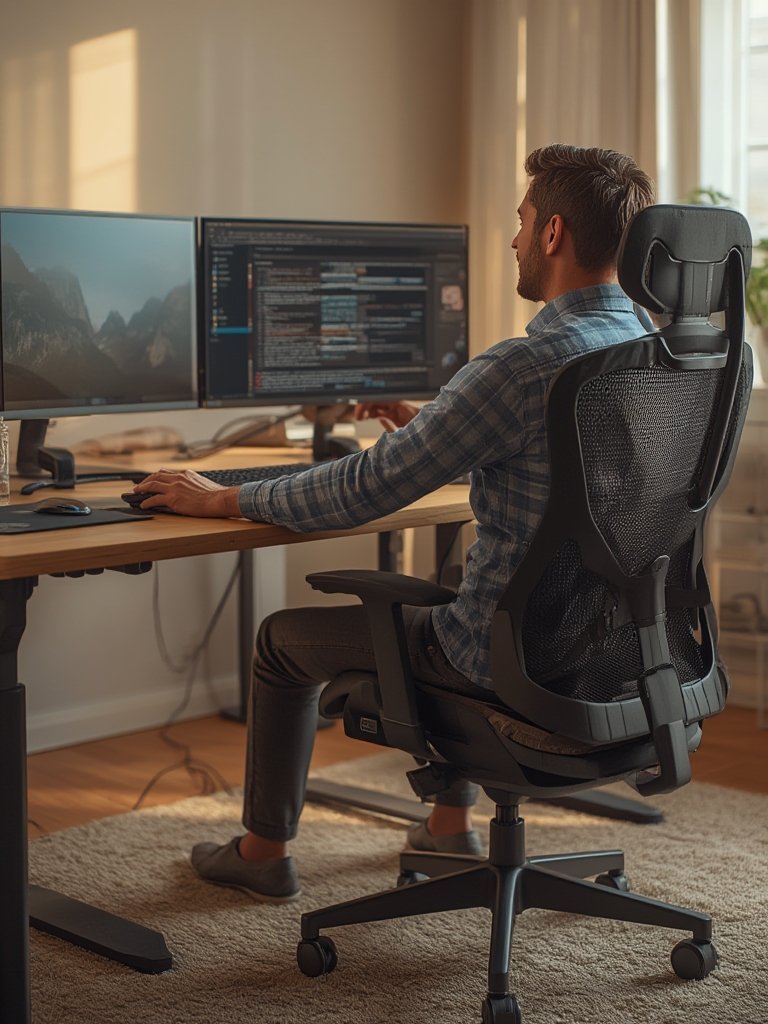
Want a bite-size reference for overall setup? Keep your main monitor in front, adjust the top to eye level, set at arm’s length, and limit any side monitor angle to less than 35 degrees. Always swivel your chair instead of your neck.
Advanced Analysis & Common Pitfalls
No multi-monitor ergonomic setup is perfect. Even advanced monitor arms and deep desks have their pain points. Here’s what trips up most users — and how to fix it.
- Neck strain from excess rotation: Most people place dual monitors too far apart or angle the secondary monitor beyond 35 degrees. According to the 2024 University of Arkansas study, this is the top biomechanical risk for musculoskeletal problems.
- Improper screen height or angle: Monitors without flexible arms are often stuck too high or low, promoting neck flexion and tension headaches. Be sure your monitor arm provides at least 6 inches of vertical adjustability.
- Desk too shallow or narrow: Less than 30 inches depth puts your screens too close, undermining even the best multi-monitor ergonomic setup.
- Lack of cable management: Cable clutter not only looks bad, it also makes frequent re-adjustments difficult and can reduce screen airflow, which can shorten hardware lifespan.
- System lag: Using an underpowered graphics card or low-memory PC for high-res multi-monitor work causes eye strain, lag, and workflow slowdowns. Match your hardware to your display needs.
| Feature | Monitor Arm | Fixed Dual Stand |
|---|---|---|
| Height & Tilt Adjustment | Fully independent per display | Usually fixed, limited or none |
| Side Angle (Swivel) | Up to 30–35° each display | Limited or fixed |
| Desk Depth Compensation | Arms extend forward or back | Cannot move screens away from desk edge |
| Cable Management | Usually built-in | Rare or requires DIY |
| VESA Compatibility | Standard (most 19″+, ultrawides supported) | Varies, sometimes only standard sizes |
| Cost | Higher (but for a reason) | Lower initial price |
| Health Impact | Reduces neck rotation/strain | Often triggers neck flexion, twisting injuries |
If your workstation integrates a standing desk, make sure that monitor arms synchronize with desk height adjustment — not all dual mounts adapt well to standing transitions. To see how these principles fit into a broader healthy workspace, our Ergonomic Desk Setup Guide walks through the full process.
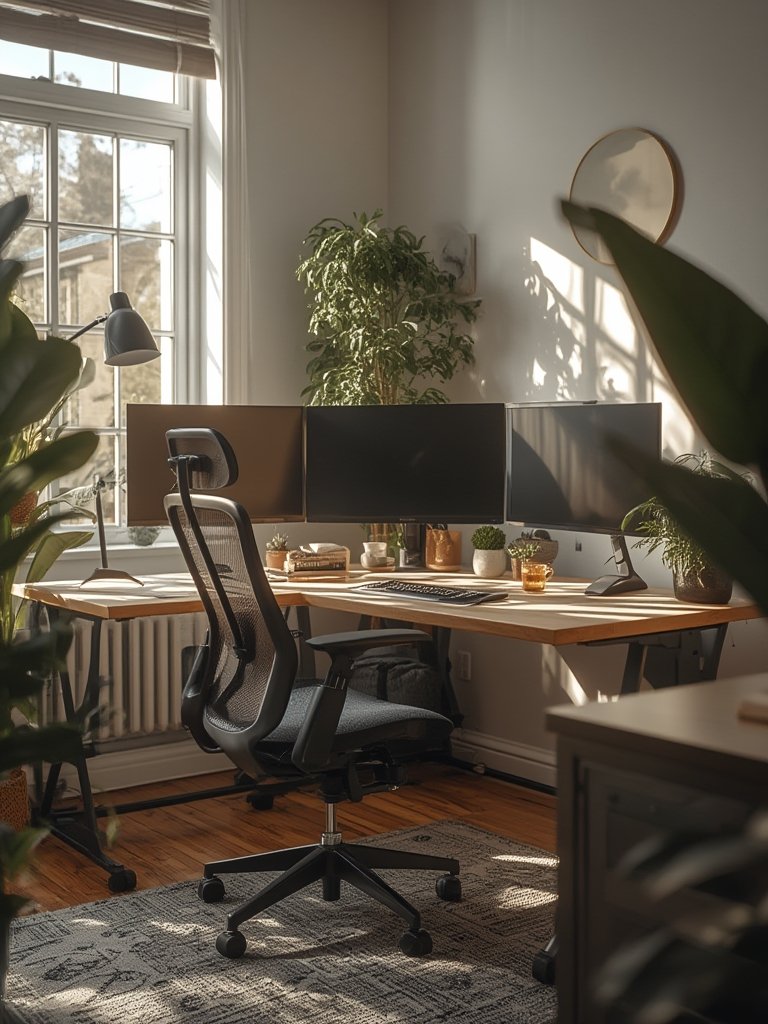
Don’t Forget Lighting and Glare Control
Even with perfect screen alignment, poor lighting can ruin the effectiveness of your multi-monitor ergonomic setup. Harsh overhead lights or direct sunlight hitting your screens causes glare, forcing your eyes to work harder and leading to headaches. To fix this, try to position your desk perpendicular to windows rather than facing them directly.
Additionally, consider using a monitor light bar or bias lighting (LED strips placed behind the screens). These tools reduce the harsh contrast between your bright displays and the dark room, significantly lowering eye strain during long work sessions.
Conclusion
When you follow the best-practice standards outlined above, a proper multi-monitor ergonomic setup does more than increase your productivity. It protects your neck, eyes, and long-term health. Remember: desk depth, adjustable arms, careful screen angles, and hardware that matches your workflow make all the difference.
Don’t just “set it and forget it” — check your alignment anytime you feel discomfort. Ready to optimize your own workstation? Review your current layout step by step, and don’t hesitate to consult our posture tracking wearable guide for real-time feedback and extra posture support solutions.
Start optimizing your multi-monitor ergonomic setup today—your neck and your future self will thank you.
FAQ
What’s the ideal angle for a multi-monitor ergonomic setup?
Keep both monitors no more than 30–35 degrees apart, forming a shallow V-shape, or align your main monitor straight forward and the secondary slightly angled. This minimizes neck twisting and matches latest guidelines.
How high should dual monitors be placed to prevent neck strain?
The top edge of each monitor should be at or slightly below your eye level. This allows a neutral neck posture and prevents tilting either up or down, which can lead to discomfort over time.
If I stand and sit during the day, do I need to adjust my monitors each time?
Yes. If you use a sit-stand desk, choose monitor arms with easy vertical adjustment to reposition the screens at eye level in both postures. Some advanced arms move in tandem with adjustable desks.
Are fixed monitor stands really that bad for posture?
They can be. Fixed stands often don’t provide enough height or side-angle adjustment for a truly effective multi-monitor ergonomic setup, causing you to look up, down, or to the side too often, increasing the risk of pain or injury.
Do I need special hardware to run more than one monitor smoothly?
Yes – modern graphics cards (GPU), enough RAM, and a fast SSD all help deliver smooth performance across multiple displays. Underpowered systems can cause lag or screen redraw delays, which can worsen eye strain.