


Ergonomic Laptop Riser solutions have become essential for anyone working long hours on a laptop, especially if you want to keep neck and back pain at bay and stay comfortable throughout your workday.
Key Takeaways
- Raising your screen to eye level with an ergonomic laptop riser can significantly reduce your risk of neck and upper back pain based on workstation studies.
- Most clinical experts recommend screen heights where your eyes align with the top of your laptop screen—modern risers make this practical and achievable.
- Choosing the right riser involves considering adjustability, stability, portability, and the overall fit with your workspace and workflow.
- What Is an Ergonomic Laptop Riser and Why Use One?
- How to Set Up and Get the Most from Your Laptop Riser
- Common Pitfalls, Real-World Feedback, and What to Watch Out For
- Conclusion
- FAQ
What Is an Ergonomic Laptop Riser and Why Use One?
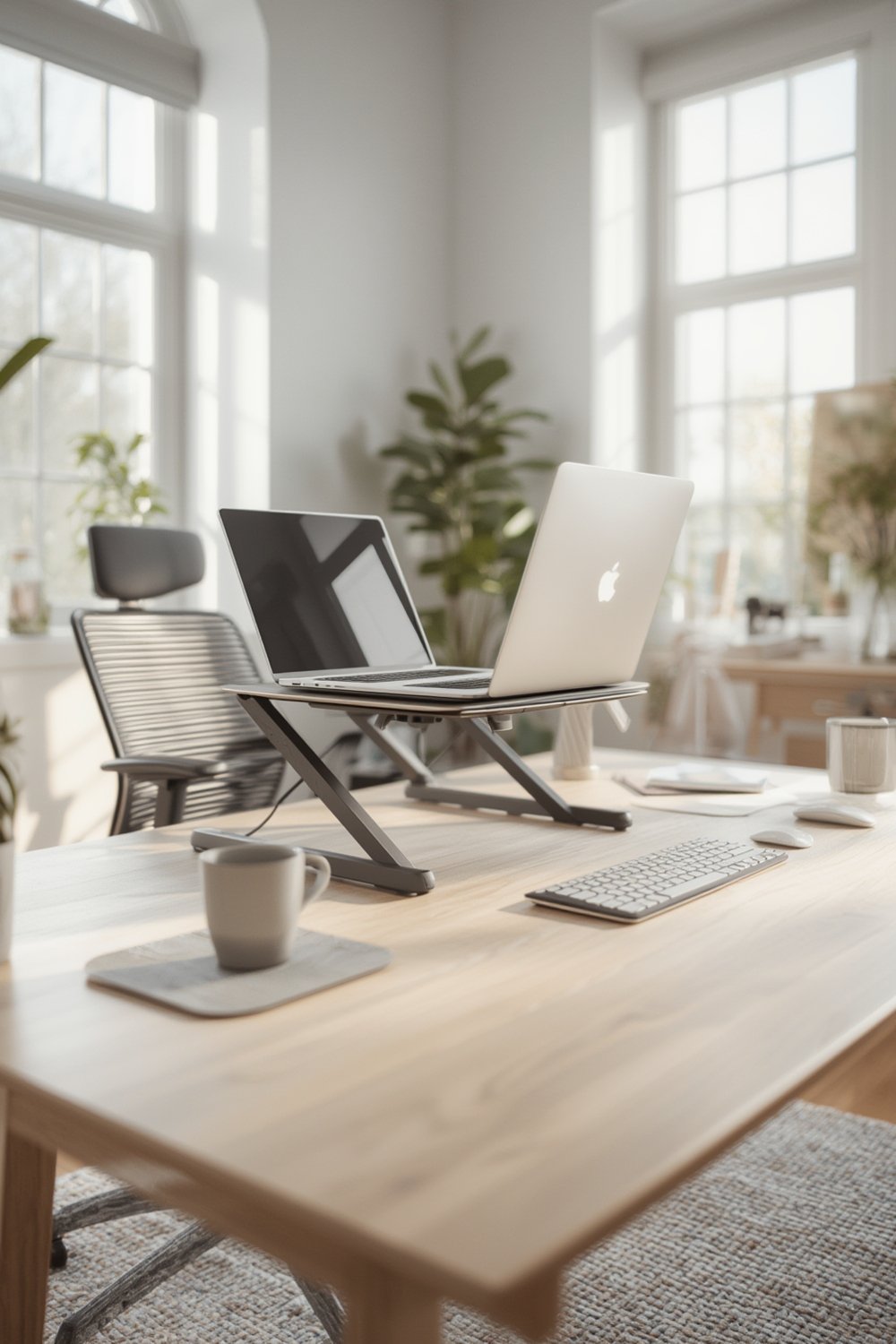
An ergonomic laptop riser is a specially designed stand that elevates your laptop screen to a comfortable, eye-level height. This adjustment helps you maintain a neutral posture, reduces the risk of musculoskeletal strain, and supports long-term back and neck health. Workstation studies cite that among people using computers at home, nonoptimal screen positions are directly linked to a higher risk of neck and upper back pain. In fact, nearly half of surveyed remote workers reported back or neck problems linked to their setup, highlighting just how common these discomforts have become.
Proper riser use puts your screen at eye level, helping to prevent forward head posture, shoulder rounding, and the gradual development of chronic aches often seen with laptop use. It’s no wonder that clinical guidelines emphasize screen height as a key ergonomic variable for maintaining spinal alignment.
How to Set Up and Get the Most from Your Laptop Riser
Getting the best results from your ergonomic laptop riser comes down to a few simple steps—and a little bit of experimentation. Here’s how to maximize both comfort and productivity while keeping your setup aligned with clinical advice:
- Find Your Eye-Level Height: Sit upright in your usual chair. Place the laptop riser so that the top of your screen is straight across from your eyes. This simple change can reduce forward head tilt and neck muscle tension substantially—something repeatedly backed up in recent ergonomic research.
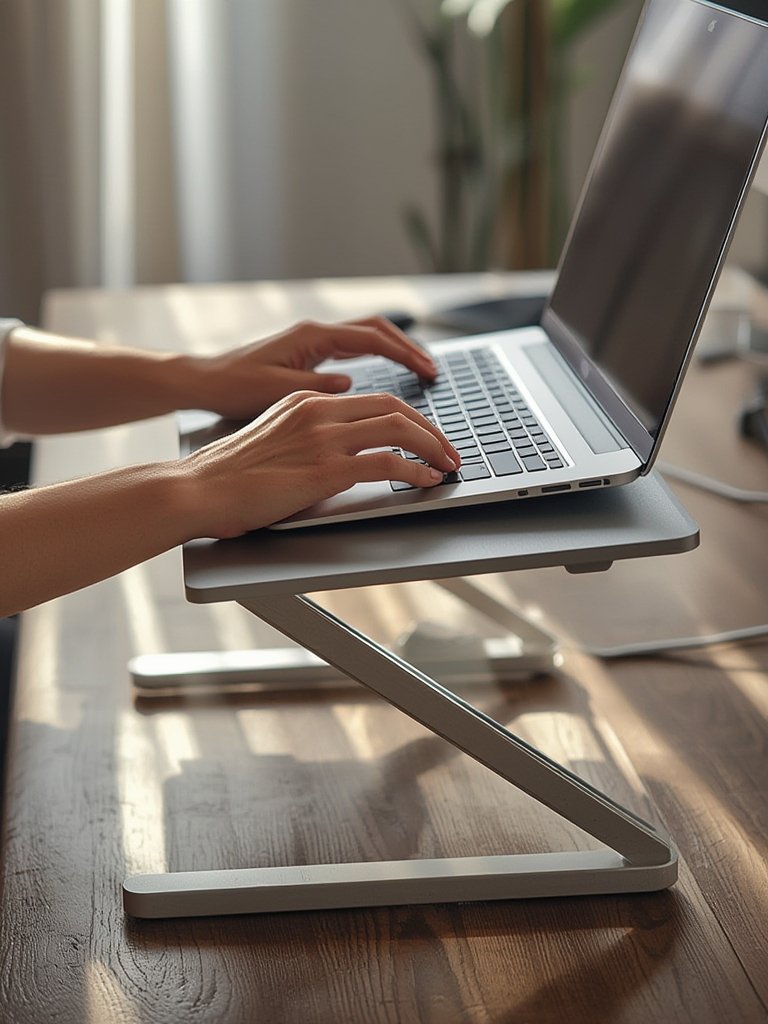
- Adjust Your Typing Position: Lifting your laptop for the screen will make the keyboard and touchpad awkward. Plug in or pair an external keyboard and mouse for neutral wrist alignment. For more desk setup details, you can visit this comprehensive ergonomic desk setup guide.
- Optimize for Screen Glare, Heat, and Cable Management: Place your riser in a location that reduces reflections and glare. If your model has adjustable angles, tilt the screen to avoid overhead light reflections. Some premium stands include cable management—use these to minimize clutter.
- Choose Ventilated or Solid Surfaces: If you run demanding applications, select a riser with ventilation slots or mesh to keep your laptop cool. Overheating can lead to thermal throttling, but there’s not enough definitive evidence that ventilated risers alone extend device lifespan long-term—just that they’re a smart precaution.
- Test for Stability and Adjustability: After setup, type a few notes and try opening/closing your laptop. The riser should feel stable and not wobble. If you intend to travel, try folding it down—great portable models pack nearly flat to fit in backpacks.
Don’t forget, ergonomics isn’t just about equipment—it’s about breaking up static postures, too. For a deep dive into integrating posture-friendly habits and digital reminders, the smart standing desk productivity guide offers smart tech solutions you can combine with your riser setup.
Common Pitfalls, Real-World Feedback, and What to Watch Out For
Even the best ergonomic laptop risers can’t correct every problem, especially if user habits or desk conditions are suboptimal. Based on recent studies and survey data, here’s what you should know before making a purchase—or when troubleshooting your current setup:
- Overlooking External Accessories: Many users buy a riser but skip the external keyboard and mouse, leading to shoulder tension or awkward wrist angles.
- Choosing Non-Adjustable or Flimsy Stands: Cheap, non-adjustable models may not reach proper heights or feel stable. Wobble or sliding can break your focus and, in rare cases, may even damage your device.
- Portability vs. Stability Tradeoffs: Ultra-light models often compromise on sturdiness. If you travel frequently, look for units with Foldable, lightweight, includes carrying pouch.
- Ignoring Screen Angles: Ergonomics is not just about height—if your riser doesn’t allow for angle adjustments, you risk screen glare or poor visibility, especially in variable lighting.
- Missing Out on Clinical Guidance: Not all risers align your screen with clinical best practices. Always check that your chosen model supports eye-level or slightly-below-eye-level positioning.
Here’s a direct comparison of premium vs. basic laptop risers, highlighting the features you should consider before buying:
| Feature | Premium Adjustable Riser | Basic/Fixed Riser |
|---|---|---|
| Material Quality | Aluminum alloy or reinforced plastic | Thin or generic plastics |
| Height & Angle Adjustability | Multiple height and tilt settings | Limited or none |
| Ventilation | Dedicated vents, perforation, or mesh | Solid panel or minimal venting |
| Portability | Foldable, lightweight, includes carrying pouch | Bulky or non-collapsible |
| Stability | Non-slip pads, metal hinges, anti-wobble design | May slide or tip easily |
While research is still catching up on 2024-specific statistics, the hazards of poor screen positioning are well documented. If you spend more than six hours per day on a laptop, investing in a trustworthy, adjustable riser is a practical way to keep setup-related pain at bay. For even greater spine protection and focus, see posture trainers and wearables.
Be aware that clinical experts still emphasize the importance of holistic desk ergonomics—using a riser is just one part of the equation. Optimizing your chair, desk height, and integrating regular movement breaks all contribute to long-term comfort. For a full workspace overhaul, follow these 3 essential ergonomic desk setup steps.

Conclusion
If you use a laptop daily, an ergonomic laptop riser is one of the simplest, most cost-effective tools to improve posture and comfort. While there is no cure-all, raising your screen to eye level reduces strain, lowers the risk of chronic neck and back pain, and can significantly improve your focus and productivity. Combine your riser with an external keyboard, proper chair support, and regular movement for the best results. Ready to transform your desk? Invest in an ergonomic laptop riser and build a healthier workflow.
FAQ
How high should an ergonomic laptop riser elevate my screen?
Your laptop screen should be adjusted so that the top of the display is at or just below your eye level when you’re seated upright. This matches expert recommendations and allows for neutral neck positioning.
Can I use a laptop riser without an external keyboard or mouse?
It’s not recommended. Raising your laptop for eye-level viewing can make typing and using the trackpad awkward, leading to shoulder or wrist strain. For maximum ergonomic benefit, always use an external keyboard and mouse with your riser.
What features should I look for in a high-quality ergonomic laptop riser?
Look for adjustable height and tilt, sturdy construction (such as aluminum alloy), non-slip feet, ventilation for device cooling, and compact foldability if you travel. Stabilizers and anti-wobble designs provide added confidence during daily use.
Is there a difference between ventilated and non-ventilated laptop risers?
Ventilated risers allow for better heat dissipation, helping to keep your device cool, especially during sustained workloads. However, research does not yet show significant differences in laptop lifespan solely due to riser ventilation—though it’s likely beneficial for intensive users.
What are some alternatives if I don’t have a dedicated laptop riser?
In a pinch, you can stack sturdy books or a box to elevate your laptop, but always ensure stability. Dedicated risers are safer, offer better adjustability, and are less likely to slip.